> ## Documentation Index
> Fetch the complete documentation index at: https://docs.fairfood.org/llms.txt
> Use this file to discover all available pages before exploring further.
# How login to Trace
## Login Methods
1. Password-less login: Allows users to authenticate by entering a One-Time Password received via email.
2. Email / Password: Allows users to log in using their registered email address and password.
3. Login with Google: Login with Google allows users to authenticate using their Google account credentials.
## Password-less login
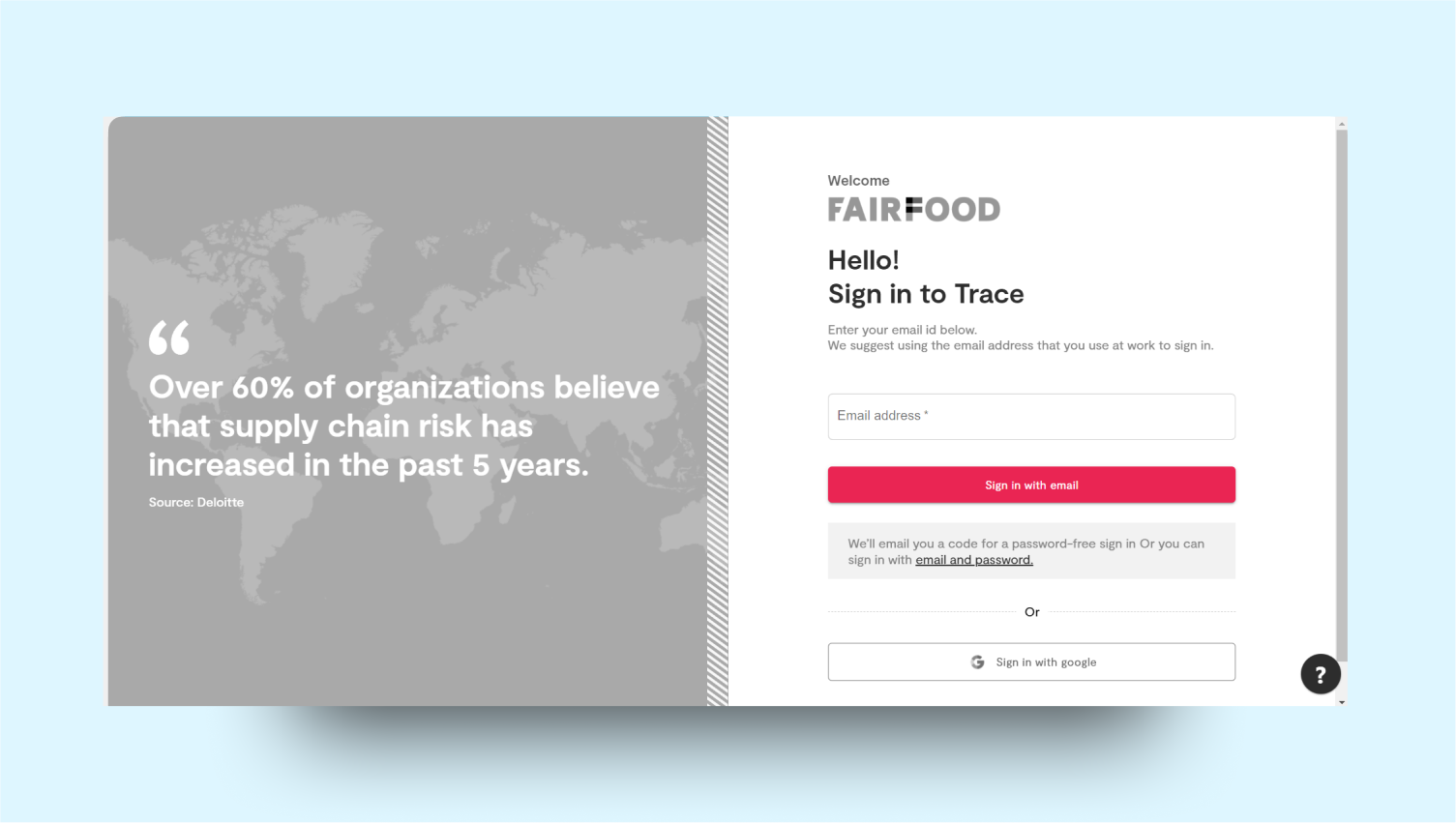
 * Select the "Login with email" option.
* Enter your registered email address.
* Check your email for a One-Time Password (OTP).
* Enter the OTP in the designated field to authenticate your identity
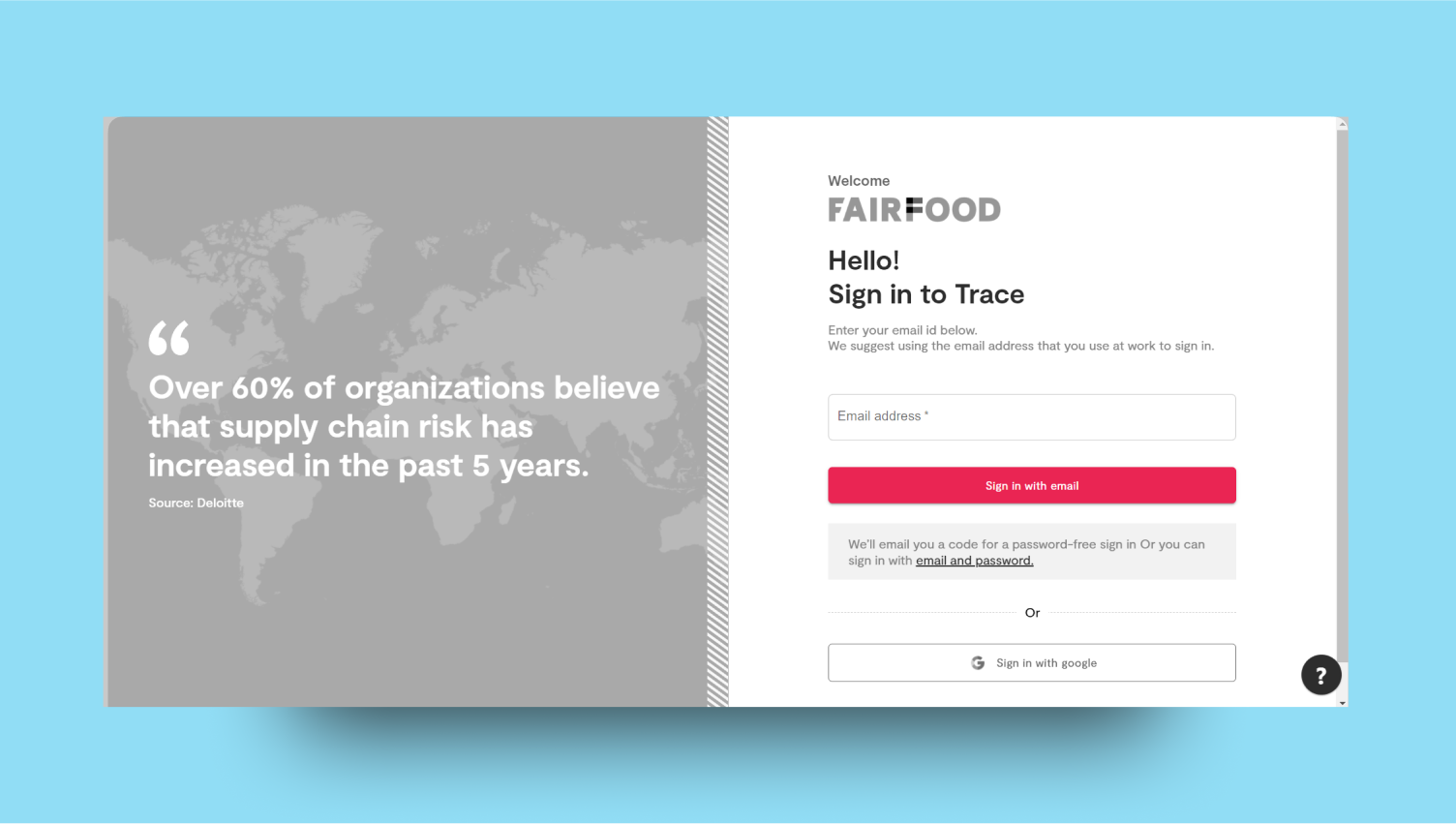
* Select the "Login with email" option.
* Enter your registered email address.
* Check your email for a One-Time Password (OTP).
* Enter the OTP in the designated field to authenticate your identity
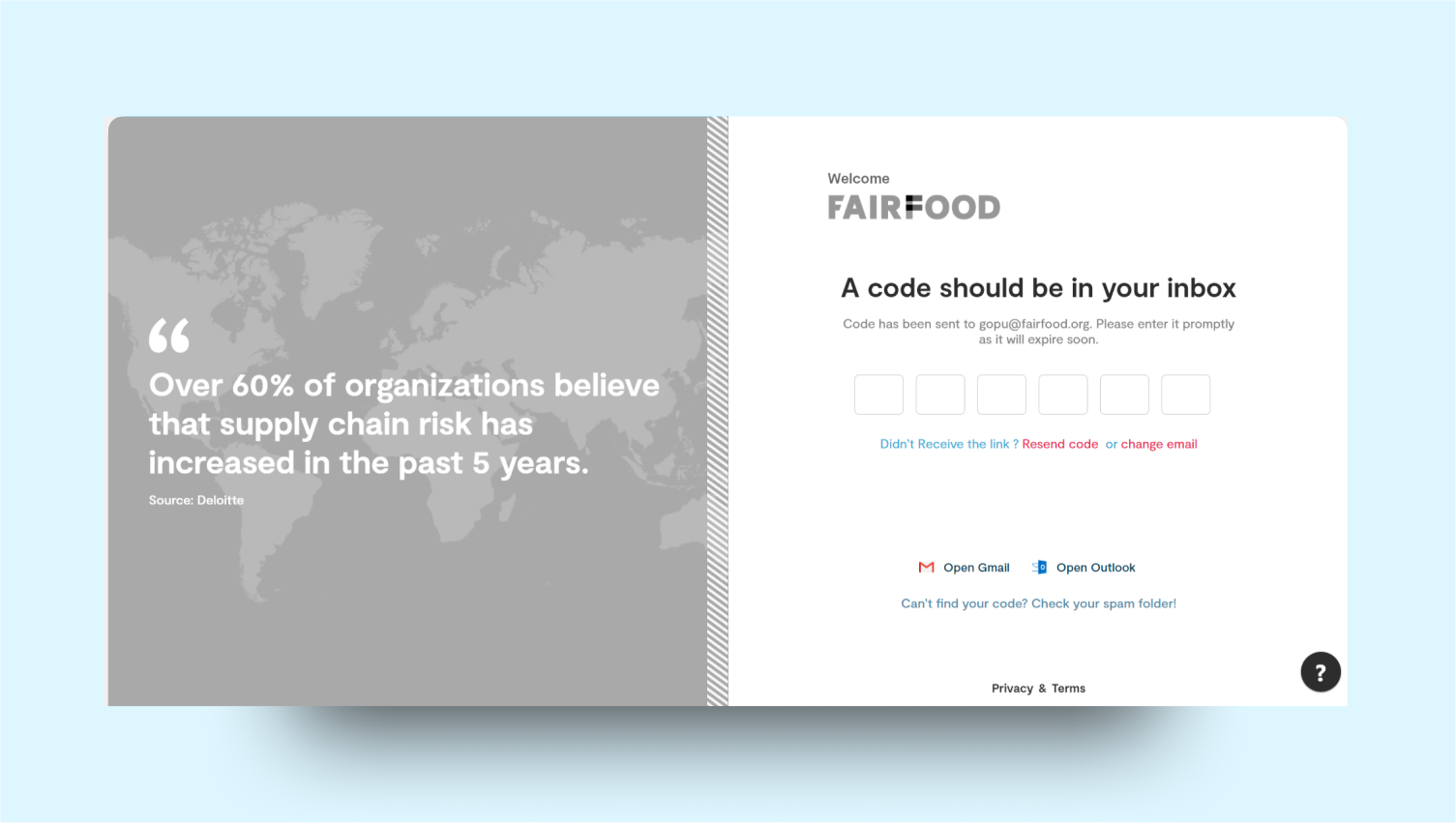
 * Enter the One-Time Password (OTP) received via email into the designated field for verification.
## Email / Password
* Enter the One-Time Password (OTP) received via email into the designated field for verification.
## Email / Password
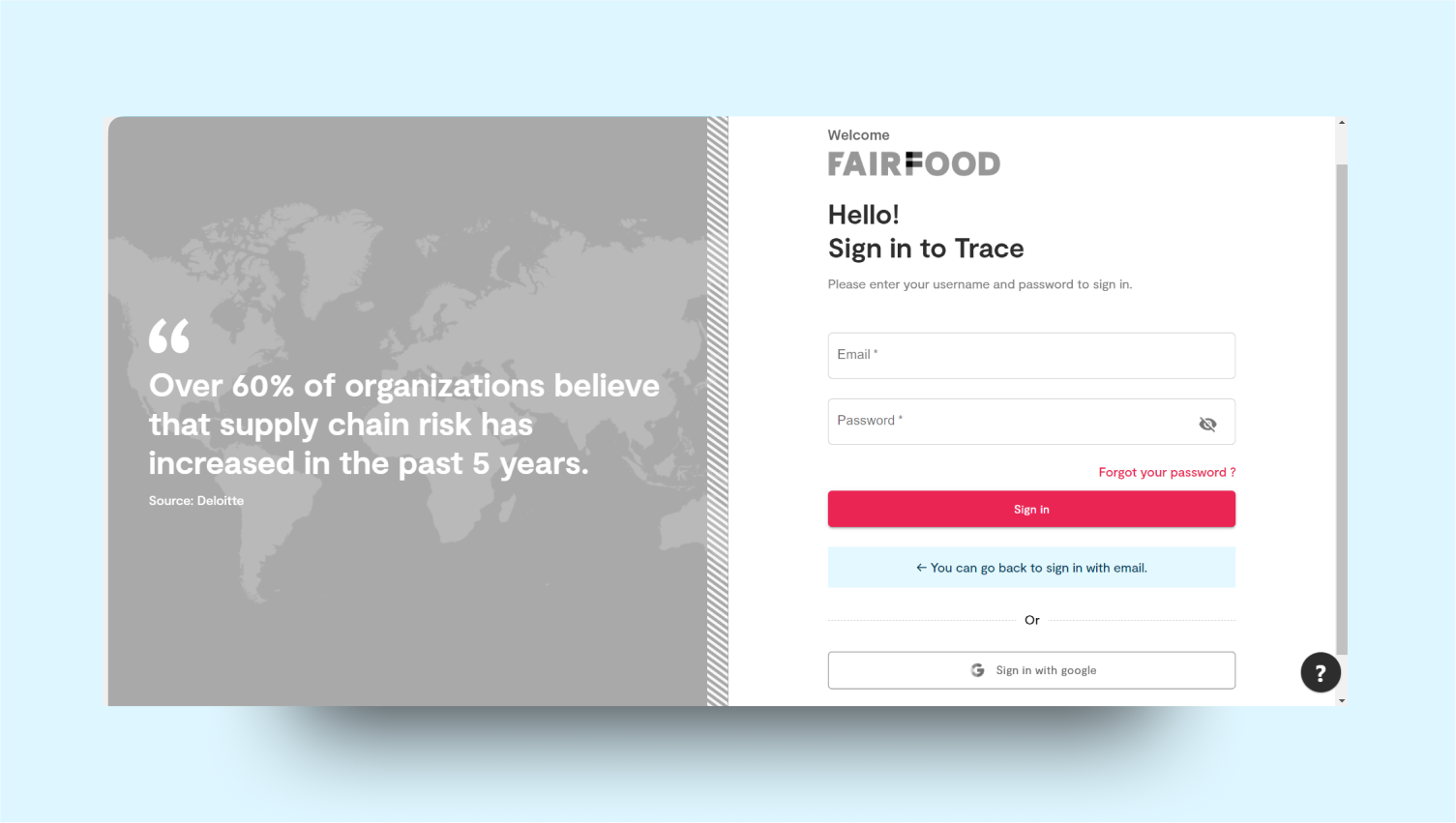
 * Select the "Email/Password Login" option.
* Enter your registered email address.
* Enter your password.
* Click the "Login" button to access your account.
## Login with Google
* Select the "Email/Password Login" option.
* Enter your registered email address.
* Enter your password.
* Click the "Login" button to access your account.
## Login with Google
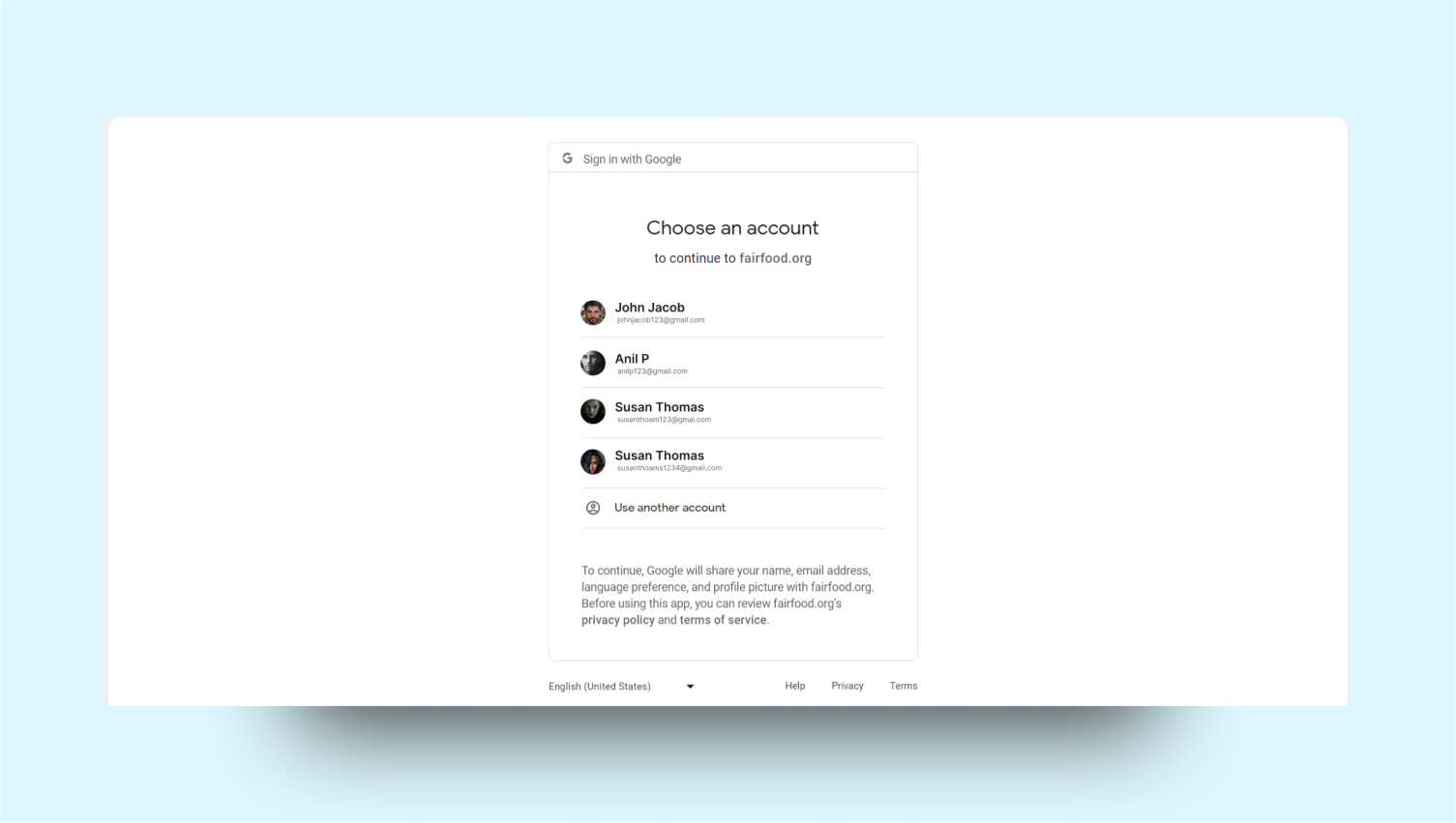
 * Select the "Login with Google" option.
* You will be redirected to the Google sign-in page.
* Enter your Google account credentials.
* Follow the prompts to grant permission.
* You will be redirected back to the application, and your login will be complete.
* Select the "Login with Google" option.
* You will be redirected to the Google sign-in page.
* Enter your Google account credentials.
* Follow the prompts to grant permission.
* You will be redirected back to the application, and your login will be complete.